
How to Check M-PESA Statement in Kenya (2026 Guide: Fast, Easy & Complete Methods)
If you’re looking for how to check M-PESA statement, this guide covers every reliable method available in Kenya today. Whether you need to track transactions, verify payments, or download a full statement for official use, Safaricom provides multiple ways to access your M-PESA records quickly and securely.
From quick mini statements on your phone to full downloadable PDFs, here’s everything you need to know.
What is an M-PESA Statement?
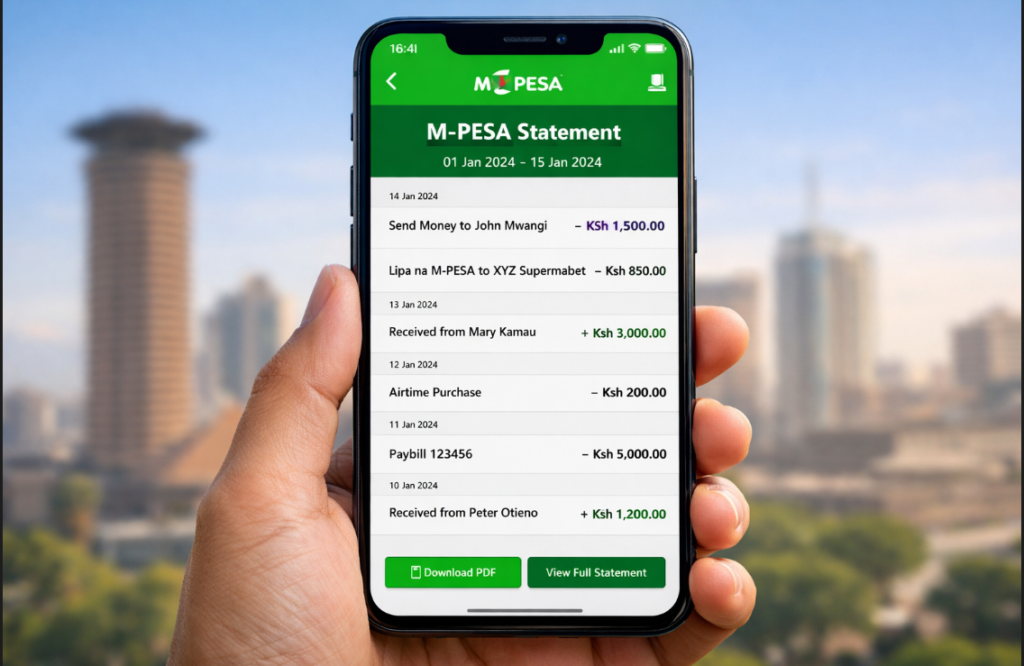
An M-PESA statement is a detailed record of all transactions made through your M-PESA account. It typically includes:
Sent and received money
Paybill and till payments
Airtime purchases
Transaction dates and timestamps
Charges and fees
Account balance changes
It serves as proof of payment and is often required for loans, business accounting, or dispute resolution.
Requirements to Access Your M-PESA Statement
Before checking your statement, ensure you have:
A registered M-PESA number
Your national ID or registration details
Access to your phone (for USSD or app)
A valid email address (for full statements)
How to Check M-PESA Statement (Step-by-Step Methods)
Method 1 – Using USSD (Mini Statement)
This is the fastest way to check recent transactions.
Steps:
Dial *234# on your phone
Select M-PESA Services
Choose Mini Statement
Enter your M-PESA PIN
What you get:
Last 5–10 transactions
Instant SMS summary
Limitations:
No downloadable file
Limited transaction history
Method 2 – Via MySafaricom App
Using the MySafaricom App gives you a more detailed and user-friendly experience.
Steps:
Open the app and log in
Go to M-PESA section
Tap M-PESA Statement
Select date range
View or download
Advantages:
Easy navigation
Filter by date
Quick access to statements
Method 3 – Via Safaricom Self-Care Portal
You can also access your statement online via Safaricom self-care services.
Steps:
Visit the Safaricom self-care portal
Log in using your phone number
Navigate to M-PESA Statements
Request statement
Receive it via email
Best for:
Official records
Long-term transaction history
Method 4 – Request via Email (Full Statement)
For a comprehensive statement (up to 6 months or more), email Safaricom directly.
Steps:
Compose an email requesting your statement
Include:
Full name
ID number
Phone number
Period requested
Send to Safaricom customer care at customercare@safaricom.co.ke
Wait for processing (usually within 24 hours)
How to Download and Print M-PESA Statement
Once you receive your statement:
To Download:
Open the email
Click the PDF attachment
Save to your device
To Print:
Open the PDF
Click Print
Select printer or “Save as PDF”
Common Uses:
Loan applications
Business records
Expense tracking
How Far Back Can You Get M-PESA Statements?
Mini Statement (USSD): Last few transactions only
Full Statement: Up to 6 months (standard request)
Extended periods may require special requests through Safaricom
Common Issues and Fixes
1. Not Receiving Email
Check spam/junk folder
Confirm correct email address
2. Delayed Statement
Wait up to 24 hours
Follow up with Safaricom support
3. Login Issues
Reset password
Ensure correct phone number
4. Wrong Details Submitted
Resend request with accurate information
Security Tips When Accessing M-PESA Statements
Never share your M-PESA PIN
Avoid public Wi-Fi when accessing statements
Use only official platforms like MySafaricom App
Log out after accessing your account
Frequently Asked Questions (FAQs)
1. How can I check my M-PESA statement quickly?
Dial *234# and select mini statement for instant results.
2. Can I download my M-PESA statement as a PDF?
Yes, via the app or Safaricom portal.
3. How long does it take to receive a full statement?
Usually within a few hours to 24 hours.
4. Is checking M-PESA statement free?
Mini statements may incur a small fee; full statements are usually free.
5. Can I get a statement older than 6 months?
Yes, but you may need to contact Safaricom directly.
Related Article:
How to Use M-PESA Paybill
Conclusion
Understanding how to check M-PESA statement is essential for managing your finances, verifying transactions, and keeping accurate records. Whether you prefer the speed of USSD, the convenience of the app, or the completeness of a full PDF statement, Safaricom has made the process straightforward.
Start now by dialing *234# or using the app to access your latest transactions in seconds.