
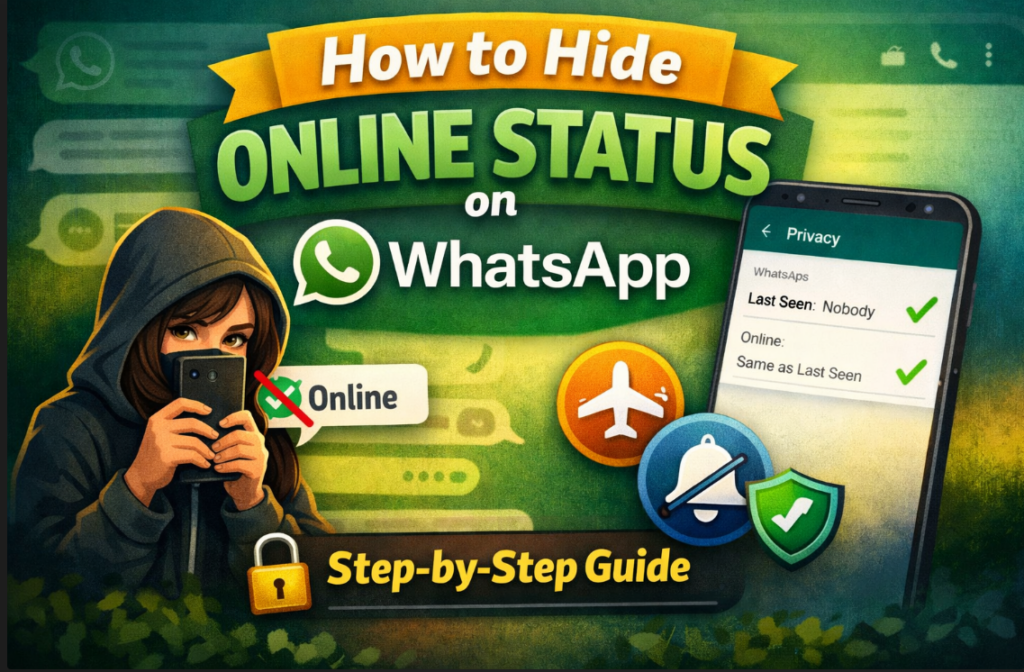

How to Hide Online Status on WhatsApp (Step-by-Step Guide)
If you value privacy, learning how to hide online status on WhatsApp is essential. Whether you’re avoiding distractions, maintaining boundaries, or simply browsing messages quietly, WhatsApp now gives you precise control over who can see when you’re online.
This guide provides clear, actionable, step-by-step instructions for both Android and iPhone users, plus advanced privacy tips most users miss.
✅ What “Online” Status Means on WhatsApp
Your “Online” status appears when you have the app open and are connected to the internet. It tells others you’re actively using WhatsApp—even if you’re not chatting with them.
⚠️ Important: Unlike “Last Seen,” Online status cannot be fully hidden independently unless you configure it correctly.
🔒 Method 1: Hide Online Status (Official WhatsApp Setting)
WhatsApp introduced a feature allowing you to control who sees your online status.
Step-by-Step (Android & iPhone)
- Open WhatsApp
- Tap the three dots (⋮) (Android) or Settings (iPhone)
- Go to Privacy
- Tap Last Seen & Online
- Under “Who can see my last seen”, choose: Nobody
- Everyone
- My Contacts
- My Contacts Except…
- Nobody
- Under “Who can see when I’m online”, select:
- Same as Last Seen
🔑 Key Rule:
👉 To hide your online status completely, you MUST set:
- Last Seen = Nobody
- Online = Same as Last Seen
This is the only way to fully hide when you’re online.
📱 Device-Specific Walkthrough
Android Users (e.g., Samsung, Tecno, Infinix)
- Path: WhatsApp → ⋮ → Settings → Privacy → Last Seen & Online
- Works on most Android devices
iPhone Users
- Path: WhatsApp → Settings → Privacy → Last Seen & Online
- Works on all iOS devices
🚫 What Happens After You Hide Online Status?
Once enabled:
- No one can see when you’re online
- Your “Last Seen” disappears
- You also won’t see other people’s Last Seen or Online status
This is a mutual privacy trade-off enforced by WhatsApp.
🔄 Alternative Ways to Appear Offline (Workarounds)
If you don’t want to change settings globally, use these tactics:
1. Airplane Mode Trick
- Turn on Airplane Mode
- Open WhatsApp and read messages
- Close the app completely
- Turn Airplane Mode off
✔️ You’ll read messages without showing online
2. Read Messages from Notifications
- Enable message previews
- Read chats from notification panel
✔️ No “online” status triggered
✔️ No blue ticks sent (if disabled)
3. Disable Read Receipts
- Go to Settings → Privacy
- Toggle off Read Receipts
✔️ People won’t know you’ve read messages
❌ But you also won’t see theirs
4. Use WhatsApp Widgets (Android)
- Add WhatsApp widget to your home screen
- Read messages without opening the app
⚠️ Common Mistakes to Avoid
- Setting “Online = Everyone” while hiding Last Seen ❌
- Forgetting “Online follows Last Seen” ❌
- Using unofficial apps (can lead to bans) ❌
🔐 Advanced Privacy Tips (Pro Level)
- Use “My Contacts Except…” to hide from specific people
- Archive chats + mute notifications for stealth usage
- Combine with Disappearing Messages for full privacy
- Lock WhatsApp with fingerprint/Face ID
❓ Frequently Asked Questions
Can I hide online status from just one person?
Not directly. You must use:
- “My Contacts Except…” (for Last Seen)
Can I be online without anyone knowing?
Yes—by setting:
- Last Seen = Nobody
- Online = Same as Last Seen
Will WhatsApp notify others if I hide my status?
No. Changes are silent.
Does hiding online status affect calls?
No. You can still call and receive calls normally.
🧠 Final Takeaway
Hiding your online status on WhatsApp is straightforward—but only if you configure both Last Seen and Online settings correctly.
For full invisibility:
✔ Set Last Seen = Nobody
✔ Set Online = Same as Last Seen
Combine this with notification previews and airplane mode for maximum privacy.
Related Articles: How to Edit your LinkedIn Profile